Installing OpenIndiana via the text install and ssh
Boot and setup
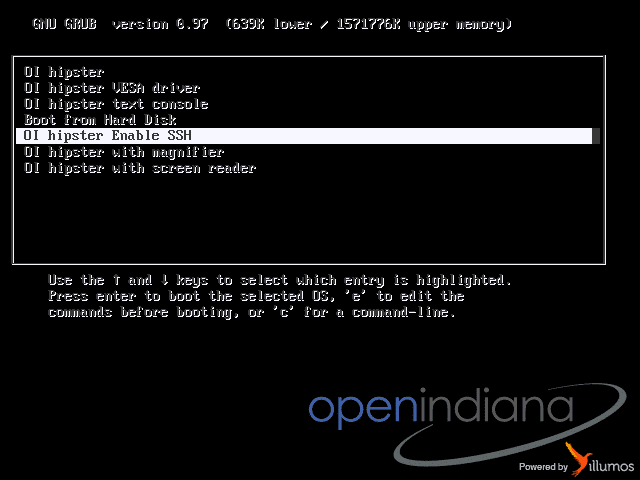
In the boot menu, select OI hipster Enable SSH
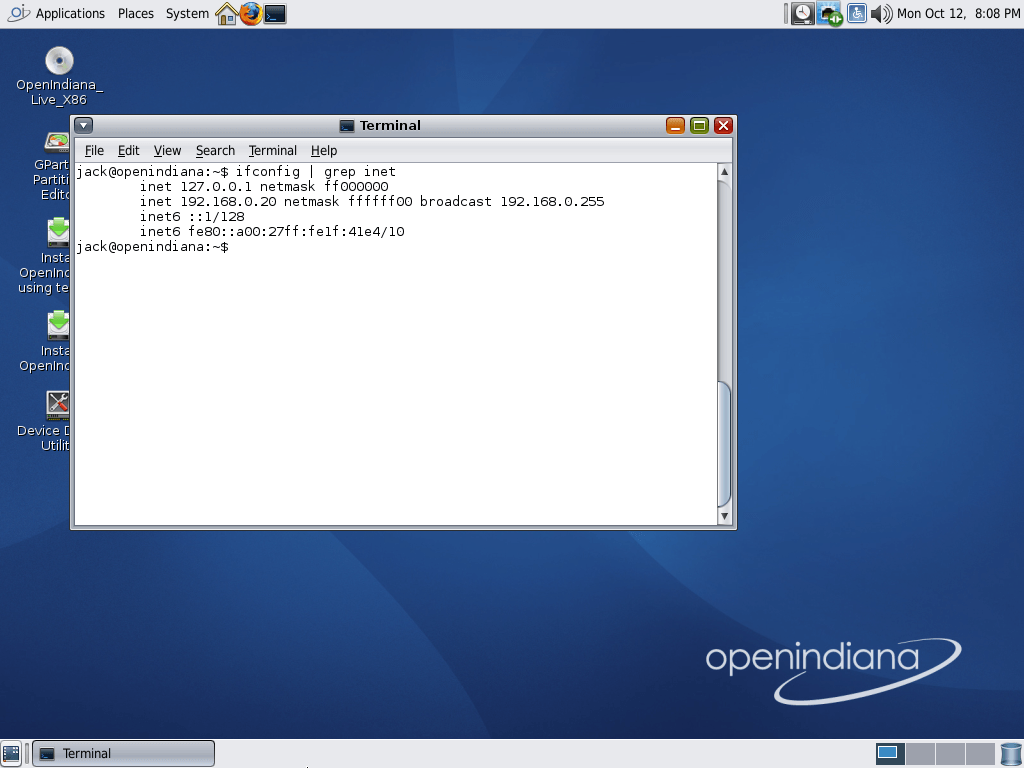
When you get to the desktop open a terminal and enter
ifconfig | grep inet
This should print something like
inet 127.0.0.1 netmask ff000000
inet 192.168.0.20 netmask ffffff00 broadcast 192.168.0.255 # could be 10.0.0.x or another IP range.
inet6 ::1/128
inet6 fe80::a00:27ff:fe1f:41e4/10
SSH and install start.
Next open a terminal on another computer(or your favorite ssh client IF you're on windows) and do
The username and password is jack.
adrian@am1m-s2h:~$ ssh jack@192.168.0.20
The authenticity of host '192.168.0.20 (192.168.0.20)' can't be established.
RSA key fingerprint is c9:41:f8:75:3a:2c:78:d5:b0:a4:04:7d:ae:94:74:a1.
Are you sure you want to continue connecting (yes/no)? yes
Warning: Permanently added '192.168.0.20' (RSA) to the list of known hosts.
Password:
Last login: Mon Oct 12 19:58:17 2015
The Illumos Project     SunOS 5.11      illumos-7fc68dd October 2015
jack@openindiana:~$

Now that you're sshed into the OpenIndiana live system you can initiate the text install.
To do so etner:
jack@openindiana:~$ /usr/bin/sudo /usr/bin/text-install
You will be prompted for a password, the password is openindiana

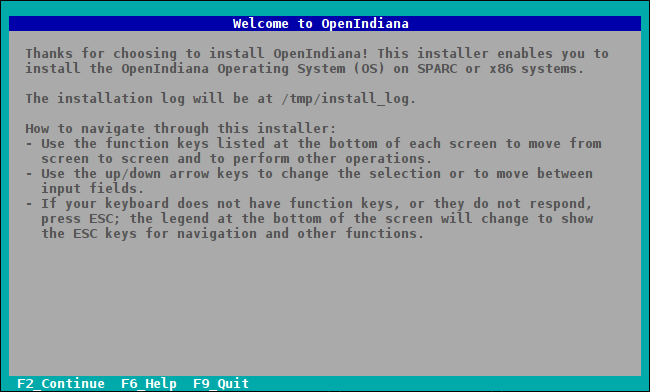
Take a moment to read if you need to and when you're ready press F2 to continue.
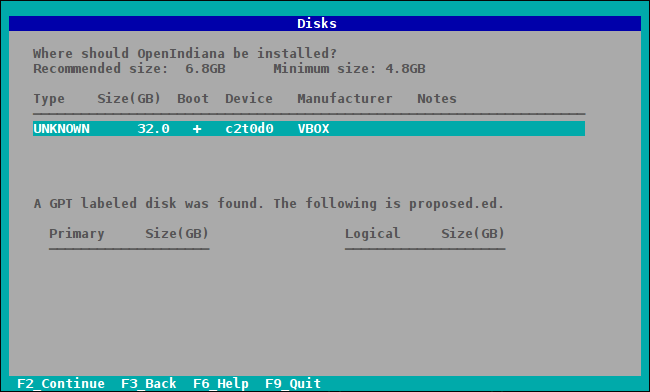
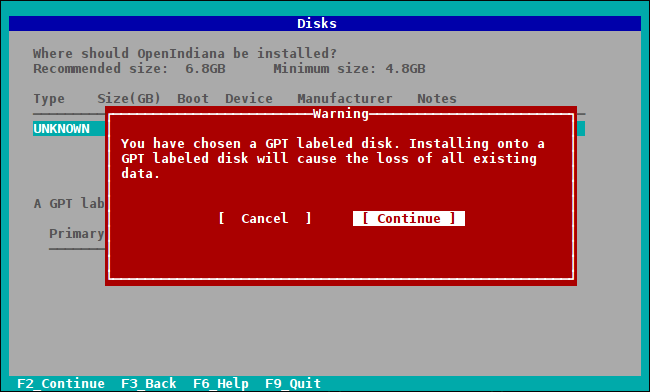
Disk partitioning/management
Now you can partition your drive or just use the whole drive. (use arrow keys to navigate menus)

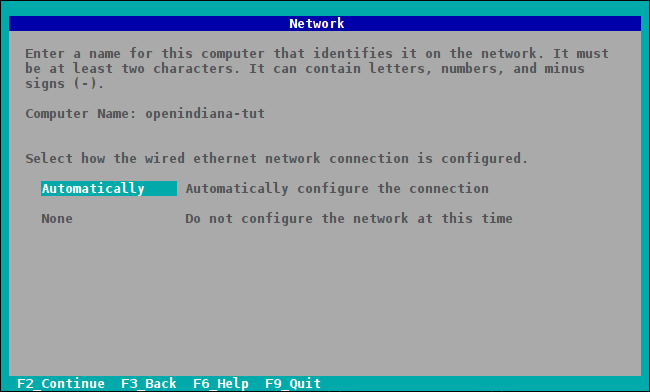
Network setup
Now you can setup your hostname(Computer Name) and how your network is setup.

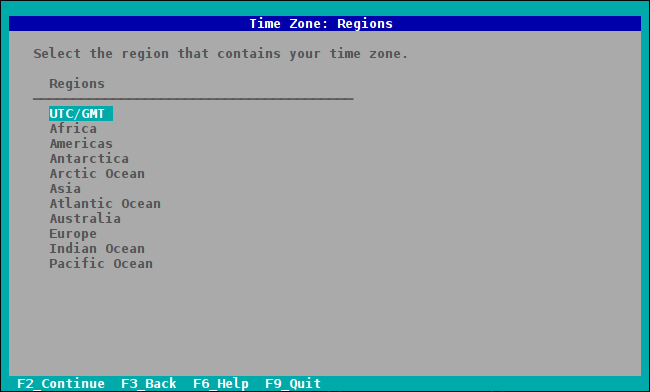
Region, location, and time zone
Now you have to select your Region
your location

your time zone

and finally make sure the date and time is correct

User and Root details

Installation Summary

Press F2 to install and wait!
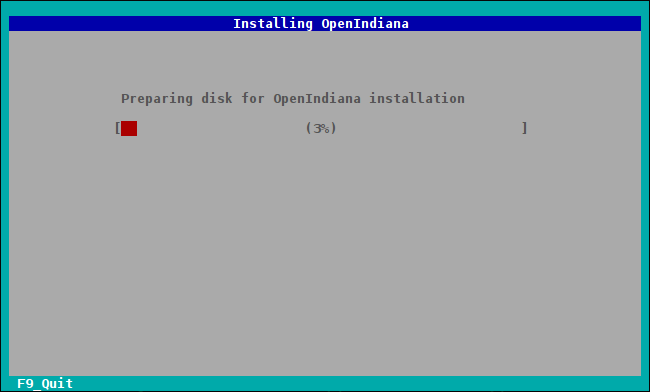

You can now press F8 to reboot into your shiny new system, F4 to view the log, and F9 to quit.
asciinema video
